This release puts you in control of how and when your budget spends. Pick one of four delivery modes, paint the hours you want on a heatmap, and find any setting in a second. Here’s everything new.
1. Four ad delivery modes
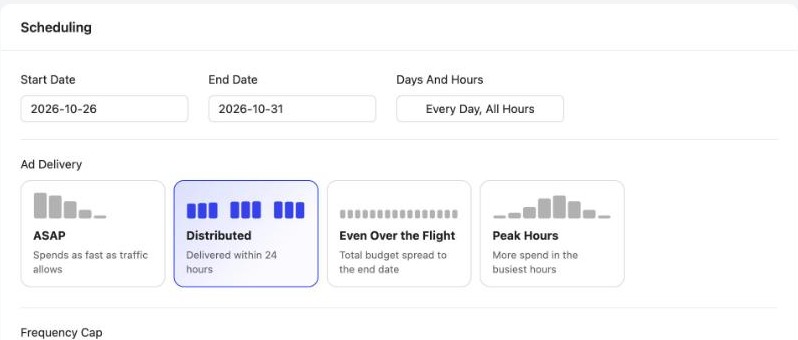
In Scheduling, Ad Delivery is now four cards, each with a picture of how the spend falls: ASAP spends as fast as traffic allows, Distributed delivers within 24 hours, the new Even over the flight spreads your total budget to the end date, and the new Peak hours puts more spend into the busiest hours.
2. Find any setting
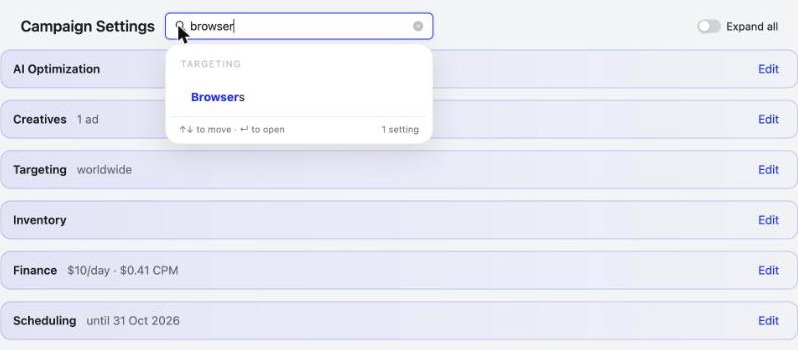
Click the search icon next to Campaign Settings and type any word. PPCmate finds the setting, opens only the section that holds it and scrolls straight to it. Expand all opens every section when you’d rather see everything.
3. A Day and Hours heatmap
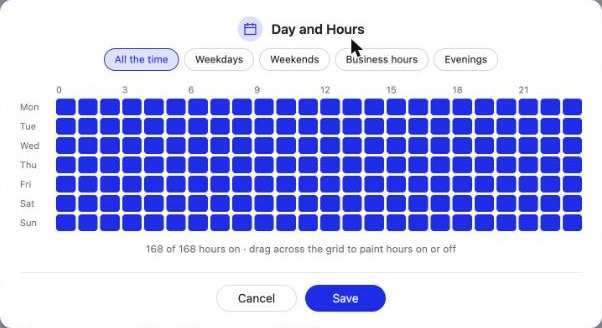
Pick when your ads run on a 7 x 24 grid: drag across it to paint hours on or off, or start from a preset like Weekdays, Weekends, Business hours or Evenings.
4. Clearer quality modes
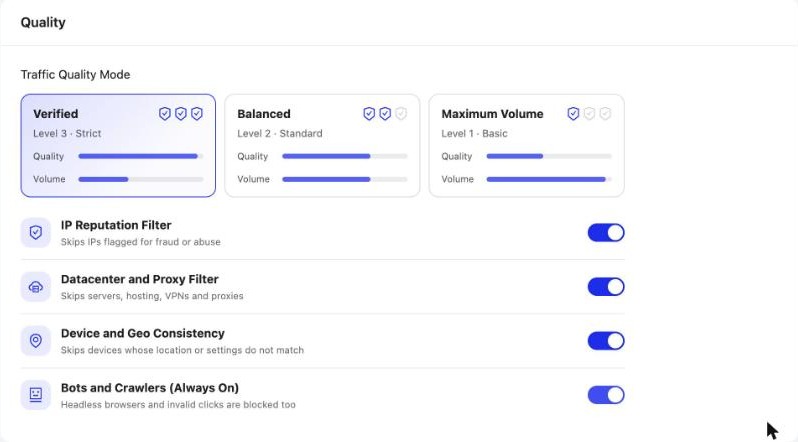
Quality is now three cards, Verified, Balanced and Maximum Volume, each showing its level and how it trades quality against volume. Every filter has its own one-line explanation, and bot and crawler blocking is always on.
5. API keys
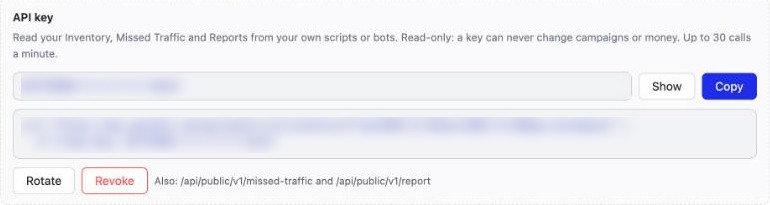
Under Profile › Security you can now create an API key to read your Inventory, Missed Traffic and Reports from your own scripts. It’s read-only, so a key can never change campaigns or money, and you can show, copy, rotate or revoke it at any time.
6. Your AI assistant, your way
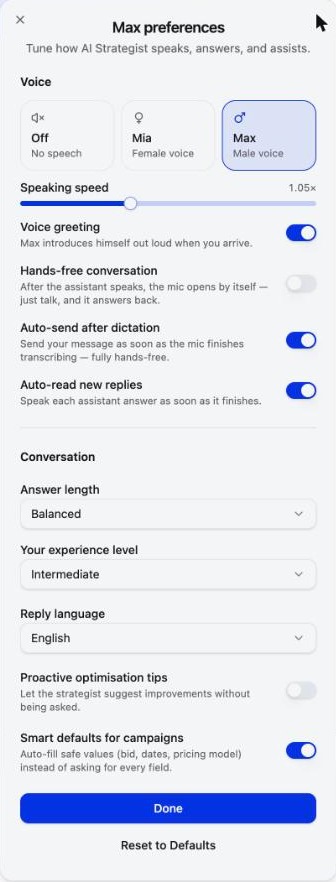
The assistant’s new Settings let you choose a Mia or Max voice (or no voice), the speaking speed, hands-free conversation, how long answers are, your experience level and the reply language.
7. Notifications with pictures
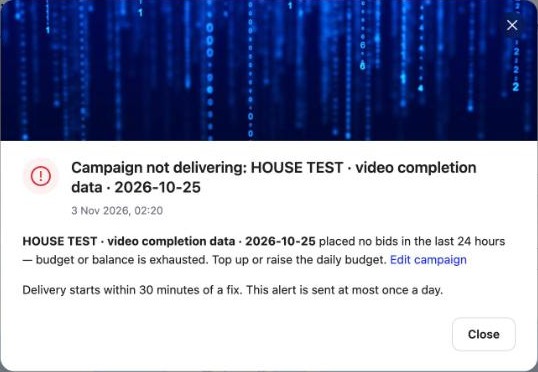
Notifications now open with a header picture, a short title and a direct link to the campaign they’re about, so you can act on them in one click.
Also new
- Browsers: Include or Exclude, plus the Facebook and Instagram in-app browsers.
- Reach that follows your targeting: the Delivery Estimate narrows as you target, and honours your end date.
- New columns: eCPM in Reports, and Bids and Win rate in the Campaigns list.
- Live traffic by campaign: the Traffic Per Second line in the menu rotates through your live campaigns.
- A refreshed dashboard map with icon toggles and a starry night globe in dark mode.
Frequently asked questions
What's new in PPCmate in the 4 November 2026 release?
Four ad delivery modes (ASAP, Distributed, Even over the flight and Peak hours); a search that finds any campaign setting; a Day and Hours heatmap with presets; Browsers include or exclude, with Facebook and Instagram in-app browsers; clearer quality modes; read-only API keys; reach that follows your targeting; AI assistant preferences with a Mia or Max voice; notifications with pictures; eCPM, Bids and Win rate columns; a live traffic line per campaign; and a refreshed dashboard map.
What is the difference between the ad delivery modes?
ASAP spends as fast as traffic allows. Distributed delivers your daily budget within 24 hours. Even over the flight spreads your total budget evenly until the end date. Peak hours puts more spend into the busiest hours of the day. Distributed and Even over the flight need an end date.
How do I find a setting in a campaign?
Open the campaign and click the search icon next to Campaign Settings. Type any word, like browser or frequency, and pick the result: PPCmate opens only that section and scrolls to the field. Expand all opens every section at once.
Can I exclude browsers from my campaign?
Yes. In Targeting, the Browsers field now has an Include or Exclude switch, and you can also pick the Facebook and Instagram in-app browsers.
What are the PPCmate quality modes?
Verified (level 3, strict), Balanced (level 2, standard) and Maximum Volume (level 1, basic). Each card shows how it trades quality against volume. Bot and crawler blocking is always on, whatever mode you pick.
How do I get a PPCmate API key?
Go to Profile, then Security, and generate a key in the API key card. It is read-only: it can read your Inventory, Missed Traffic and Reports, but it can never change campaigns or money. You can show, copy, rotate or revoke it at any time.
How do I get PPCmate product updates first?
Join the PPCmate Telegram channel at t.me/ppcmate. Every release is posted there as soon as it ships, and all changes are listed in the release notes at ppcmate.com/releases.
Get updates first
Every PPCmate release goes to our Telegram channel the moment it ships. Join PPCmate on Telegram →
See every change in the release notes, or start a campaign and try it today.