
A short SaaS demonstration has two jobs: show what the product actually does and give the viewer a reason to follow the sequence. Those jobs require different creative decisions. A captured interface can explain a real action, while an illustrated opening can introduce the problem that action addresses. Combining them works best when the team plans their roles before editing a video.
For an advertising team, the useful starting point is a storyboard with a clear promise, an identifiable audience and a small set of approved assets. The storyboard should connect each scene to something the product team can verify. Motion then becomes a choice within that plan, rather than the plan itself.
Choose a question the demonstration can answer
Begin with one viewer question. “Where can I change a saved report?” gives a demo a concrete direction. “Why is our platform amazing?” encourages a collection of broad claims that pictures cannot substantiate. Write the question above the storyboard and describe the action that will answer it.
Decide whether the piece is an introduction, a feature explanation or a reminder for existing users. An introductory ad may need a brief illustration of the situation. A feature explanation may need more room for interface labels. A reminder can sometimes begin with the relevant screen. Keep the intended audience in the brief so reviewers can assess the sequence against the same purpose.
Separate interface evidence from creative illustration
Consider a hypothetical application that lets a user rename a saved report. This example is a planning exercise, not a description of a particular product. A demonstration of the rename action would need images or recordings from a functioning version of that application. A drawing of scattered folders could illustrate the desire to organise information, but it would not establish any feature.
Give those assets different labels in the working folder. “Captured interface” identifies the real screen. “Illustrative concept” identifies the drawing. If the design team uses a prototype rather than a functioning application, name it as a prototype. Reviewers should be able to understand that distinction without reconstructing the production history.
Write the scene before selecting its format
Describe each scene in plain language, including what the viewer should notice. A practical four-scene plan might look like this:
SCENE 1: QUESTION
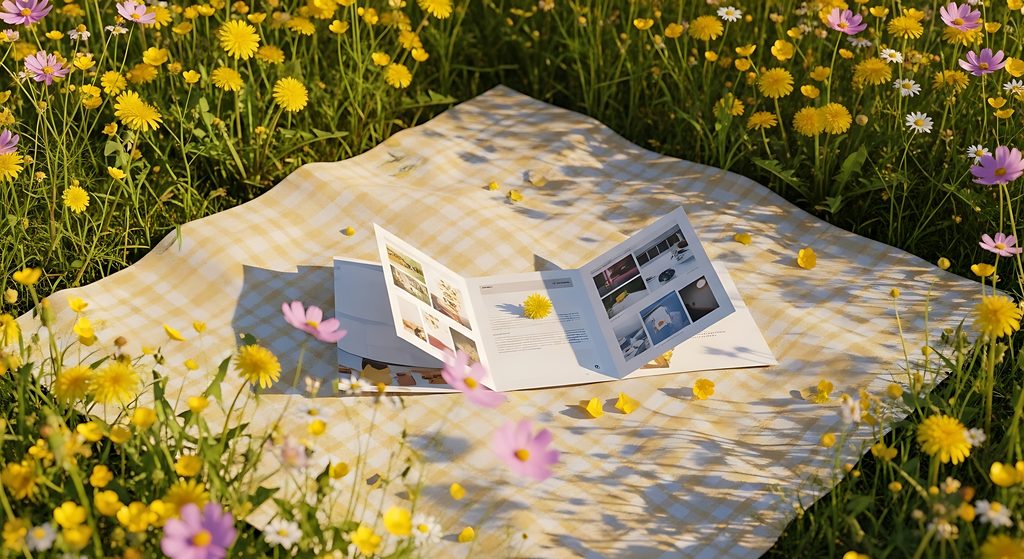
Own abstract folder illustration + short introductory text
        |
SCENE 2: CURRENT SCREEN
Approved capture with the relevant control clearly visible
        |
SCENE 3: REAL ACTION
Recorded operation or explicitly identified prototype sequence
        |
SCENE 4: NEXT STEP
Verified destination + editable closing text
Original planning diagram: four different scene roles in a hypothetical product demonstration.
Add an asset owner and a review question beside each scene. For the illustration, the question might concern tone and permission. For the captured screen, it might concern the visible product version. For the closing card, it might concern whether the destination and wording match the campaign. These are different checks, so assign them deliberately.
Use stills when the control needs explanation
A still image gives the team a fixed surface for labels and annotations. It is useful when the viewer needs to identify a menu, compare two states or read a short field name. Crop around the relevant area, but retain enough surrounding context to explain where the action belongs.
Keep explanatory text outside the screenshot as an editable layer. This makes it possible to revise wording without recapturing the interface. If the crop removes a necessary navigation step, show that step in a separate scene. A neat composition should not make the demonstrated action harder to understand.
Author motion when the sequence must be exact
Recorded footage or a manually assembled sequence can show the order of a real operation. Plan the starting state, the interaction and the resulting state before recording. Use a demonstration account with appropriate example content, and check the screen for names, messages or other information that should not appear in a public creative.
During editing, remove pauses that add nothing to the explanation, while keeping the action understandable. An arrow or highlight can direct attention to an existing control. It should not suggest a button, setting or result that the product does not provide. Keep the recorded material available so the reviewer can compare the edited sequence with its source.
Reserve generative motion for a defined creative role
An owned illustration can also become the starting point for a motion concept through an image-to-video workflow. For the abstract folder scene, this might be an exploration of gentle movement in the background before the real interface appears. Treat the resulting clip as an illustration and review it within that role.
Write a narrow creative brief: identify the elements that may move, the elements that should remain recognisable and the intended transition to the next scene. Review the clip for unexpected objects, distorted shapes or movement that changes the meaning. Keep interface captures, feature labels and factual product copy outside the generated scene.
Label synthetic illustrations clearly where they could be mistaken for recorded material. Save accepted concepts separately from rejected variations, together with their source drawing and brief. This gives later editors a clear explanation of why a particular version belongs in the demonstration.
Adapt the composition to the actual placement
Read the current media requirements for the destination before preparing the final export. Check the accepted format, dimensions, duration and any areas reserved for platform controls. Use the destination’s requirements rather than a remembered specification from a previous campaign.
Review a preview at the intended viewing size. Interface text that looks clear in the editing window may need a tighter crop or a separate explanatory card. Put essential instructions in captions or accompanying text as appropriate, and check the sequence without sound. The destination page should also provide the relevant explanation in readable text.
Make approval a decision about the whole sequence
Send the reviewer the assembled preview, the storyboard and the destination copy together. Ask them to confirm the represented feature, the distinction between captured and illustrated scenes, and the wording of the next step. Record requested changes against scene numbers so revisions remain specific.
Once approved, save a publication copy with an identifiable version name. Preserve the source captures and editable project separately. If the interface or campaign changes, return to the storyboard and update the affected scenes. A useful demo brief stays connected to the product it describes, even when its creative treatment changes.
Test a fictional presenter without changing the product evidence
If the storyboard includes a fictional presenter, Magic Hour AI character replace can replace the person or character in a source video using a reference image. Use footage and references you own or have permission to use. Review the entire clip for visual errors, label synthetic scenes, and keep screenshots of actual product controls separate. Changing the presenter does not establish that a feature works.
If the concept includes a fictional campaign presenter, Magic Hour lip sync AI is an option for matching the fictional character’s mouth movement to an authorised audio track. Identify generated speech and motion clearly; do not use the sequence to imply a real person said something they did not say.
For a separate creative experiment, describe a fictional campaign presenter in a written prompt and explore it with Magic Hour AI video generator. Keep the result labelled as generated imagery, compare it with the storyboard and retain a still alternative; the generated scene is not evidence of a real event or a tested outcome.
Contributor note: Magic Hour is a platform for creating and editing images and videos. This original supplied article was prepared with AI assistance for publisher editorial review; completed human review is not claimed. Magic Hour retains copyright and grants limited nonexclusive permission to publish and edit this article and its original planning diagram.
___